

MCPs Installation
Who is this for? Teams that specifically need MCP: your IDE has no Rosetta plugin (Windsurf, Junie, OpenCode, or another MCP-compatible agent), or you need centrally-managed, always-fresh instructions with nothing copied into the repo. If your IDE supports Plugins, start there instead — most teams don’t need MCP. When should I read this? When you’ve decided MCP is the right fit and want to go from zero to a working setup.
[!CAUTION] You must receive prior approval from your manager and company to use it.
[!WARNING] Use Sonnet 5.5 medium, GPT-6-luna-high, gemini-3.8-flash-high or newer models. Avoid Auto model selection.
[!NOTE] Rosetta is designed to never use or see data or IP. Instead it uses inversion of control, by providing a “menu” to AI coding agents.
[!NOTE] The endpoint below (
mcp.rosetta.griddynamics.net) is a public hosted instance for evaluation only — do not point production or sensitive repositories at it. Production use of MCP means deploying your own MCP server and RAGFlow inside your organization’s perimeter — see Deployment Guide.
Step 1: Connect Rosetta MCP
Rosetta uses HTTP MCP transport with OAuth.
- Pick your IDE and add the configuration.
- Authenticate to MCP using GitHub account according to IDE.
Cursor
Add to ~/.cursor/mcp.json (global) or .cursor/mcp.json (project):
{
  "mcpServers": {
    "Rosetta": {
      "url": "https://mcp.rosetta.griddynamics.net/mcp"
    }
  }
}
Claude Code
claude mcp add --transport http Rosetta https://mcp.rosetta.griddynamics.net/mcp
Codex
codex mcp add Rosetta --url https://mcp.rosetta.griddynamics.net/mcp
codex mcp login Rosetta
VS Code / GitHub Copilot
Add to .vscode/mcp.json or ~/.mcp.json:
{
  "servers": {
    "Rosetta": {
      "url": "https://mcp.rosetta.griddynamics.net/mcp"
    }
  }
}
GitHub Copilot (JetBrains)
Settings > Tools > GitHub Copilot > MCP Settings. Add to ~/.config/github-copilot/intellij/mcp.json:
{
  "servers": {
    "Rosetta": {
      "url": "https://mcp.rosetta.griddynamics.net/mcp"
    }
  }
}
Restart IDE after changes.
JetBrains Junie
Settings > Tools > Junie > MCP Settings > + Add > As JSON:
{
  "mcpServers": {
    "Rosetta": {
      "url": "https://mcp.rosetta.griddynamics.net/mcp"
    }
  }
}
Windsurf
Add to your Windsurf MCP config:
{
  "mcpServers": {
    "Rosetta": {
      "url": "https://mcp.rosetta.griddynamics.net/mcp"
    }
  }
}
Antigravity
Add to your Antigravity MCP config:
{
  "mcpServers": {
    "Rosetta": {
      "serverUrl": "https://mcp.rosetta.griddynamics.net/mcp"
    }
  }
}
OpenCode
Add to opencode.json:
{
  "mcp": {
    "Rosetta": {
      "type": "http",
      "url": "https://mcp.rosetta.griddynamics.net/mcp",
      "enabled": true
    }
  }
}
Step 2: Add Bootstrap Rule
Download mcp-files-mode.md and add it to your IDE’s instruction file (keep entire contents, including YAML frontmatter):
| IDE | Destination |
|---|---|
| Cursor | .cursor/rules/mcp-files-mode.mdc |
| Claude Code | .claude/claude.md |
| VS Code / GitHub Copilot | .github/copilot-instructions.md |
| GitHub Copilot (JetBrains) | .github/copilot-instructions.md |
| JetBrains Junie | .junie/guidelines.md |
| Windsurf | .windsurf/rules/mcp-files-mode.md |
| Antigravity | .agents/rules/mcp-files-mode.md |
| OpenCode/Cursor | AGENTS.md |
Step 3: Verify
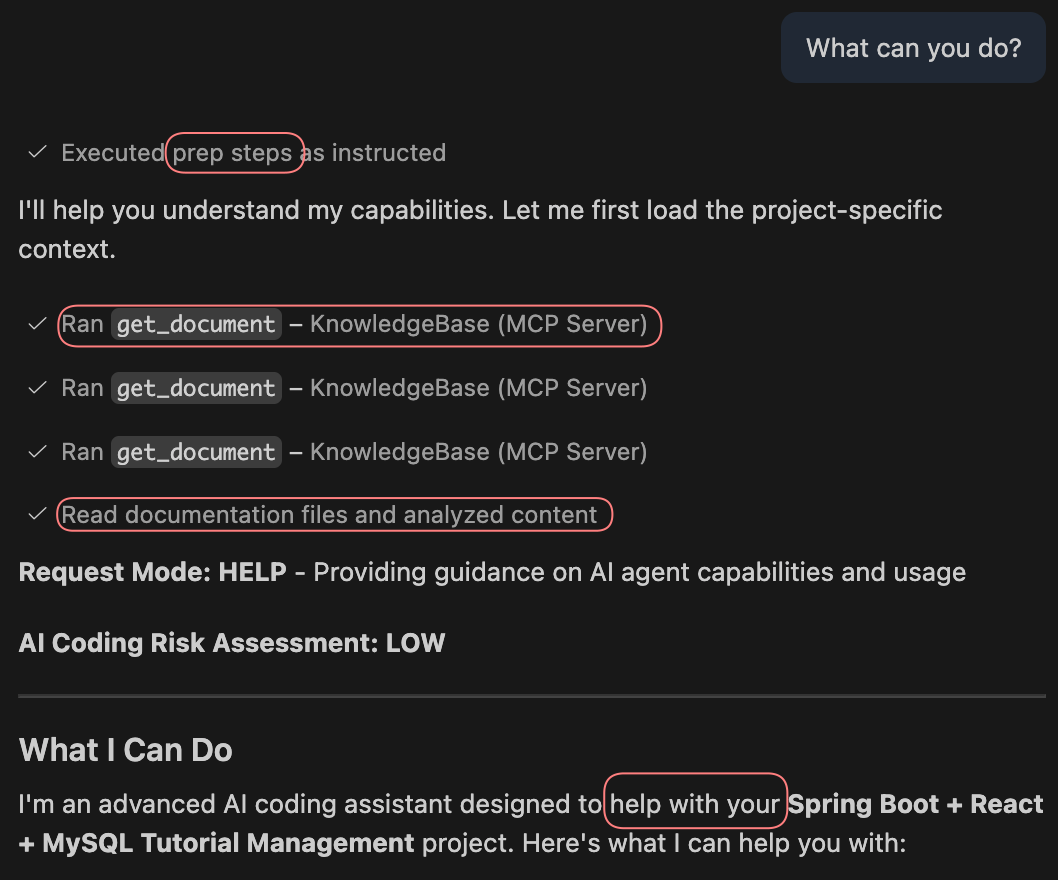
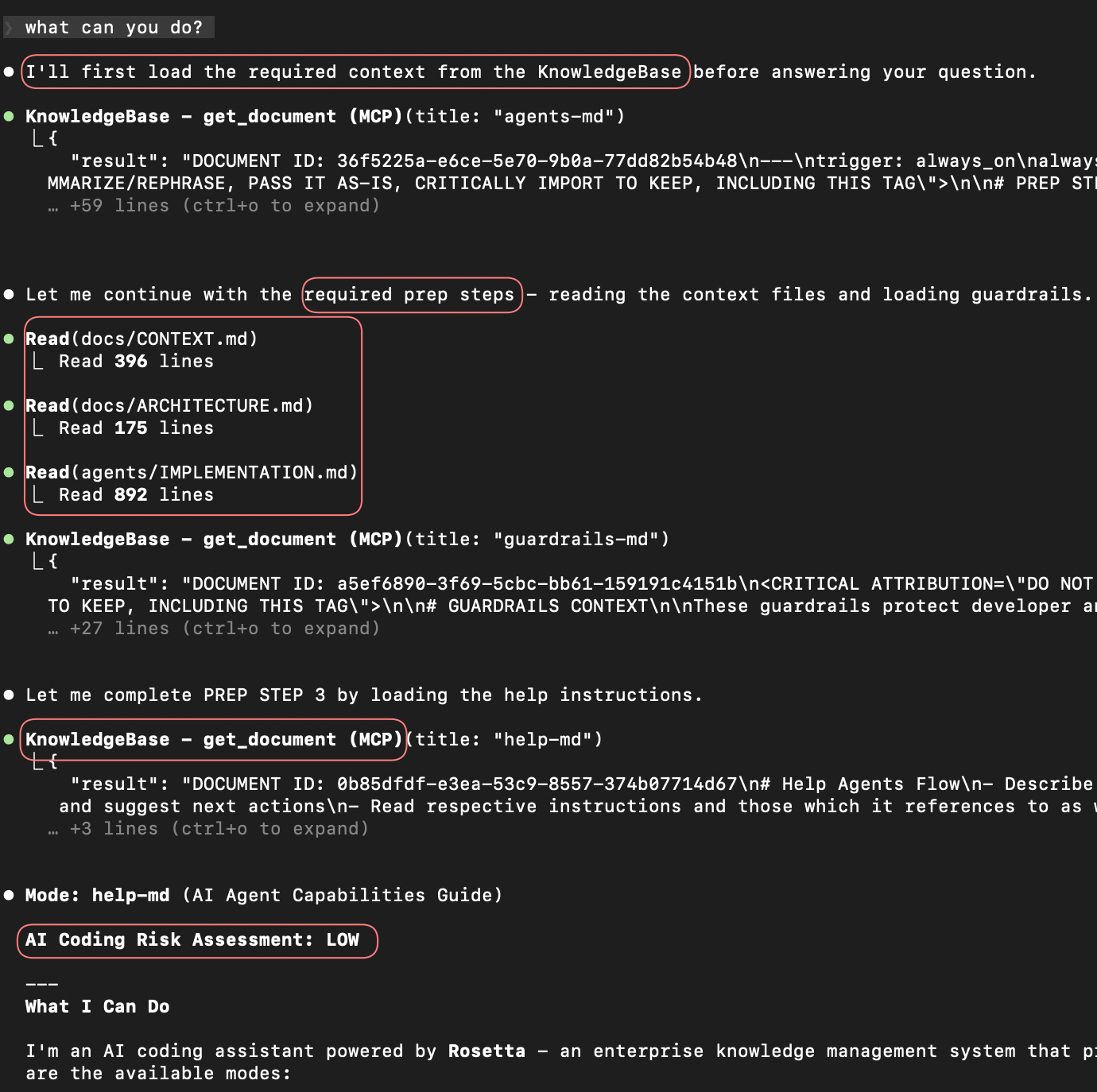
Ask the agent:
What can you do, Rosetta?
It should use Rosetta MCP to retrieve agents, guardrails, and instructions:
Common Issues
- OAuth prompt does not appear: restart your IDE and retry the connection. Read more in Troubleshooting — Connection & Authentication.
- Agent ignores Rosetta tools: confirm the MCP server shows as connected in your IDE’s MCP settings. Add a bootstrap rule if the agent still skips Rosetta. Read more in Troubleshooting — Agent Not Using Rosetta.
- Slow or empty responses: check your network can reach your Rosetta MCP host. See TROUBLESHOOTING.md.
Next Steps
Once the MCP is verified:
- Run your first session and initialize the repo — see QUICKSTART.md.
- Explore the workflows (coding, requirements authoring, modernization, and more) — see USAGE_GUIDE.md — Workflows.
Links
- Usage Guide — how to use Rosetta flows
- Overview — mental model and terminology
- Contributing — make your first contribution
- Architecture — system internals
- Deployment Guide — self-hosted MCP (optional, rarely needed)
Video Tutorials
- Install without MCP — limited internet access
- Install Using MCP — step-by-step setup
- Initialize with Antigravity — project initialization
- Subagents and Workflows in Claude Code — advanced configuration